Background
USB and UART are common communication interfaces utilized in microcontrollers. When devices need to transfer data across both, a USB-to-UART bridge is constructed.
The USB-to-UART bridge acts like a translator. So if the signal is received via USB it will be sent to UART and vice versa
Operation
The program uses the USB and UART library.
The USB will receive data from the UART and send it to the USB com port.
The UART will receive data from the USB and send it to the UART com port.
The hardware connections is a USB connection and connecting the following jumpers. See figure 1 below
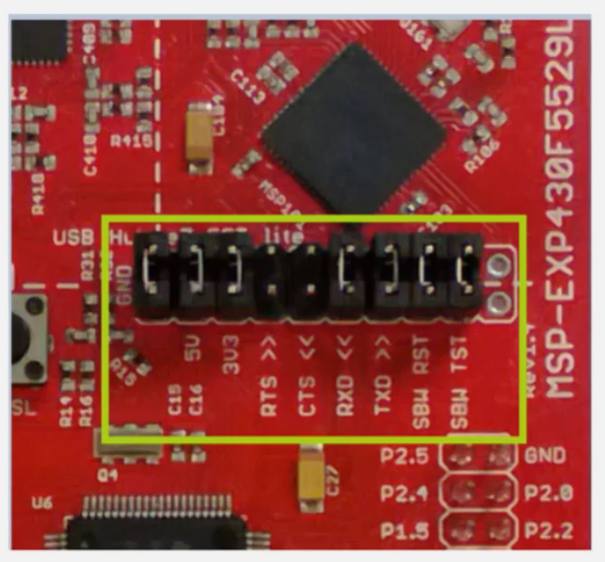
A baud rate of 9600 was used. The baud rate can range from 9600 – 115200. Any value outside this range will cause issues with the data transmission.
Code
Summary: The program waits to receive data via UART or USB. Once received, the data is stored in a buffer array and transmitted to the opposite communication interface.
The program uses the USB library
See below:
#include “USB_API/USB_Common/device.h” #include “USB_config/descriptors.h” #include “USB_API/USB_Common/usb.h”
#include “USB_API/USB_CDC_API/UsbCdc.h”
#include “USB_app/usbConstructs.h”
The UART library, specifically the UART.h file controls the baud rate and buffer size. A wake threshold variable is present. This defines the triggering threshold for waking up main().
The C UART file contains the functions that are invoked for the UART interrupts. The data is received and stored in an array.
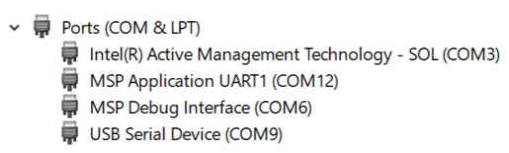
Under device manager, the UART will appear as MSP Application UART1 and the USB appears as USB serial device. See figure 2 below
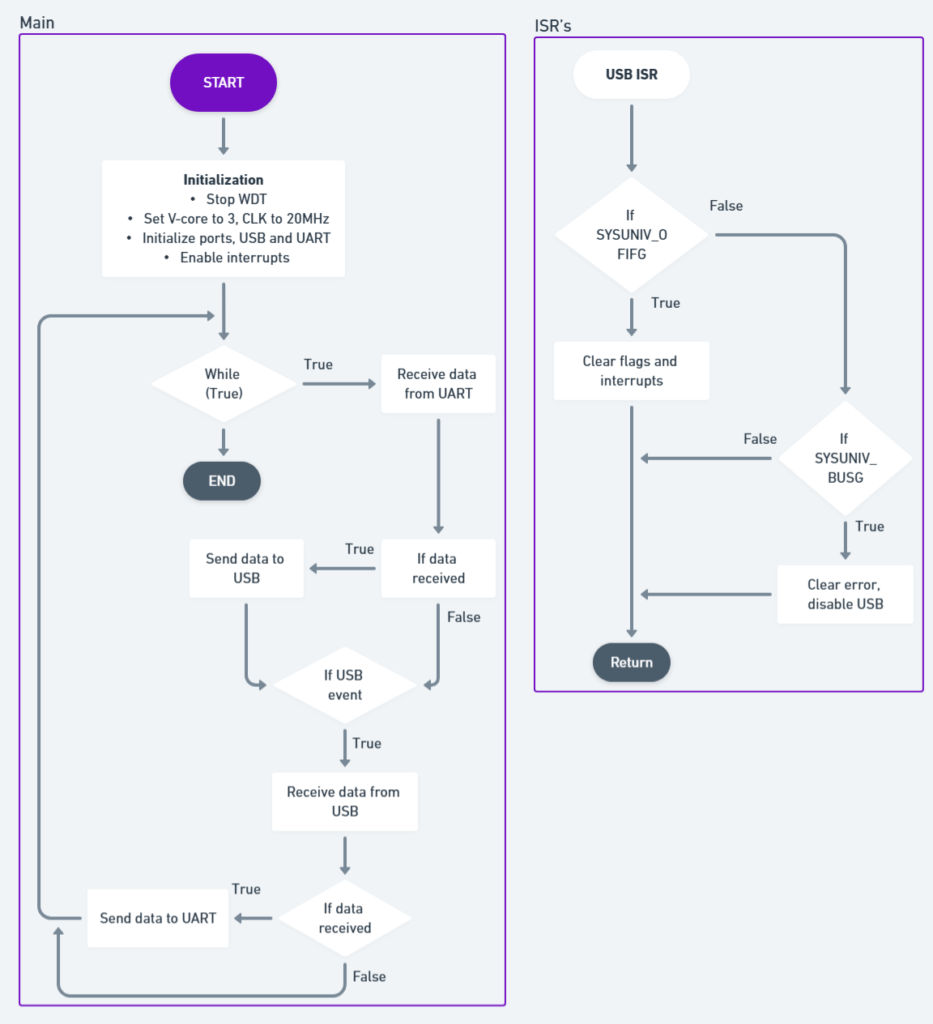
When running the program, a PC terminal program must be opened, e.g. PuTTY or TeraTerm. Typing on the UART terminal will display that information on the USB terminal and vice versa
The GUI
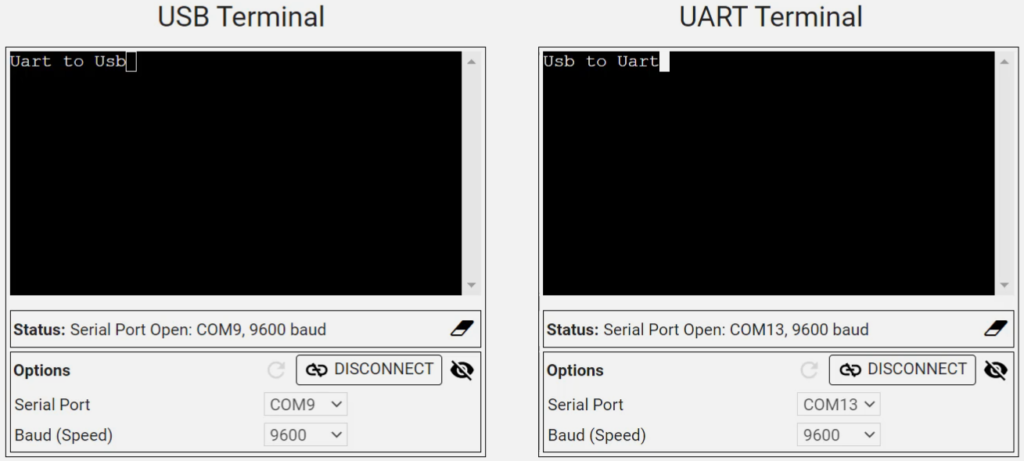
Select the correct COM port and baud rate. Begin typing in one terminal. The information will transfer across the bridge and it will be presented on the other terminal. See the figure below