This is an ESP32-based Wi-Fi scrolling LED message display you can control from a smartphone via Blynk. Four MAX7219 8×8 LED matrices display the text while the ESP32 handles Wi-Fi and app interaction.
You see scrolling LED displays EVERYWHERE!
From train stations to restaurants, on the side of the road, in Times Square etc.
LET’S GO!
The ESP32
The ESP32 is a low-cost, powerful MCU with WiFi and Bluetooth. It has:
- 512KB of RAM
- 4MB of flash memory
- 12-bit ADC
- 8-bit DAC
- I2C
- Touch sensor
- SPI
We will use the ESP32 to establish a connection to your phone. This requires both devices to connect to a server. The Blynk app will be used to create a server for which both ESP32 and phone will connect to.
Introducing Blynk
The Blynk app is an IoT platform that makes it easy to interact with hardware and build custom apps
The app we will be building is FREE. The app uses an energy system for monetization. As you build the app with buttons, widgets and sliders, you consume energy. As long as you’re beneath 2000, the application will be free.
We will use a button in Blynk.
It can be configured to react to a HIGH on a pin on the ESP32 or to trigger a function in the software. We’ll be configuring it to trigger a function in software when the button in Blynk is pressed
LED dot matrix display
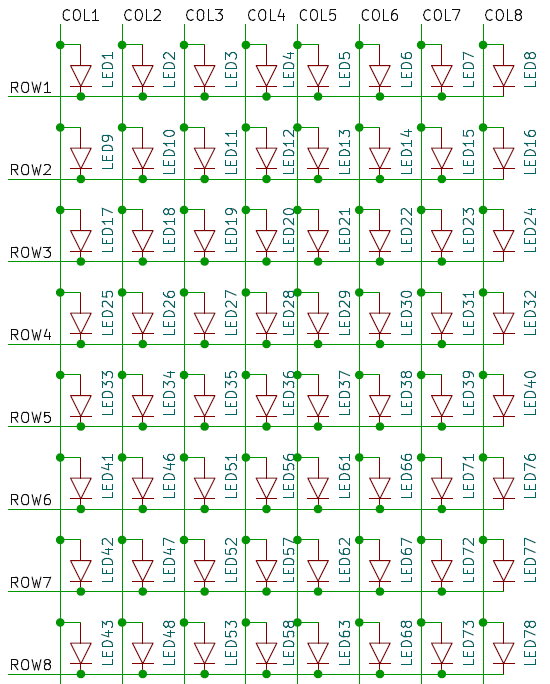
An LED dot matrix display consists of a 2D matrix of LEDs arranged as rows and columns. In the image on the left, the columns connect to the anodes, and the rows connect the cathodes. To allow current through a specific LED, you need to source the anode and sink the cathode of that particular LED.
Normal LED displays use multiplexing that creates a persistence of vision effect.
You scan the rows (or columns) one at a time. If there are n rows (where n = 8), then each row is ON for 1/n of the total frame time. Each row gets 1/8 of the time per frame. This gives a duty cycle of 1/n for EACH LED.
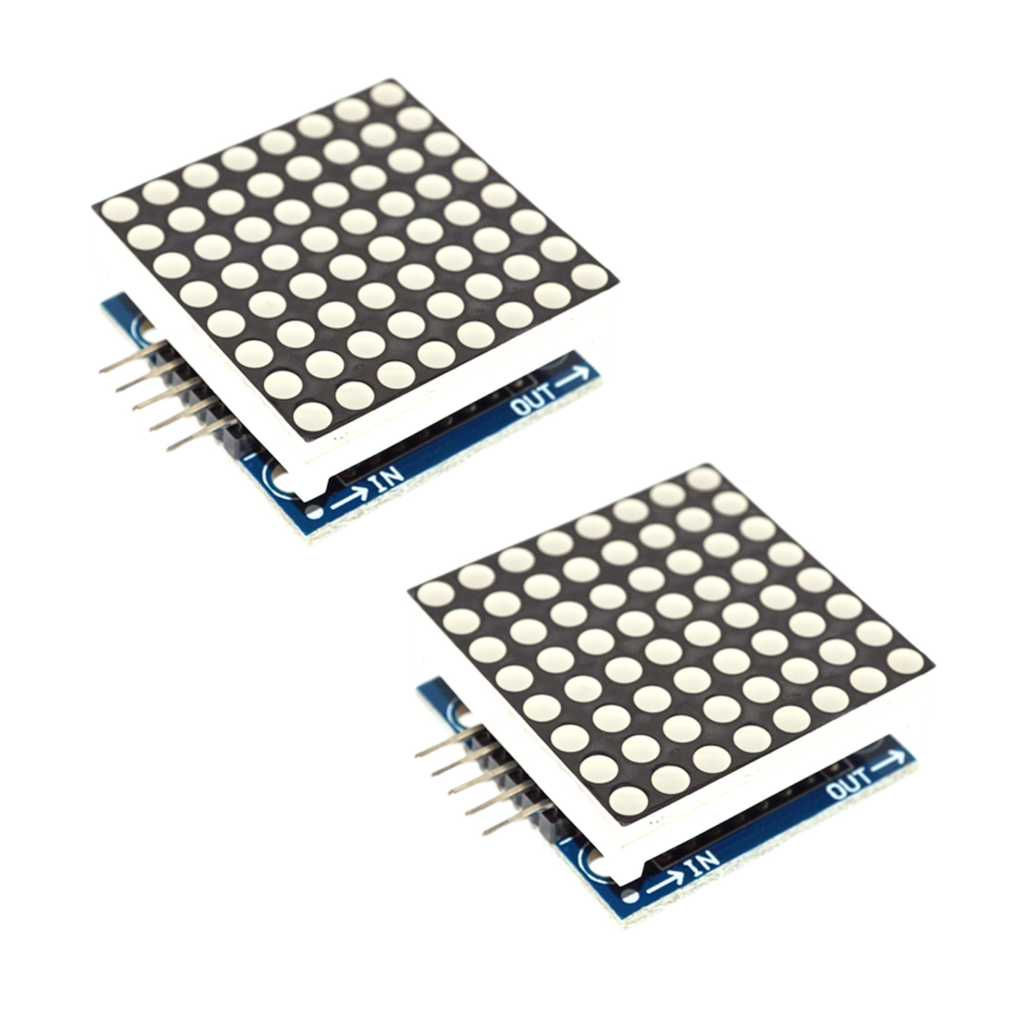
You can purchase dot matrix display’s which come with a MAX7219 dot matrix driver. This performs all the heavy lifting of multiplexing the display.
Using the display
Since the dot matrix display is composed of 8 columns and 8 rows, to produce an image on the display, we can use a 1 to illuminate that particular LED. A 0 means the LED is off
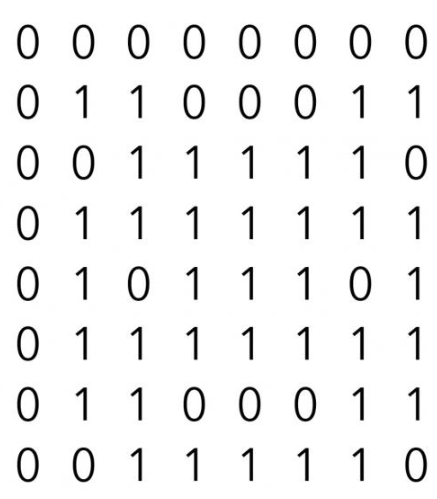
You can input this information into an array. In conjunction with ledcontrol.h library, we can send and display images on the dot matrix display.
For example:
#include "LedControl.h"
LedControl lc=LedControl(4,6,5,1);
// Pins: DIN,CLK,CS, # of Display connected
unsigned long delayTime=200;
// Delay between Frames
byte image[] =
{
    B00000000,
    B01100011,
    B00111110,
    B01111111,
    B01011101,
    B01111111,
    B01100011,
    B00111110
};
void setup()
{
  lc.shutdown(0,false);
  lc.shutdown(1,false);
  lc.setIntensity(0,5);
  lc.setIntensity(1,5);
  lc.clearDisplay(0);
  lc.clearDisplay(1);
}
void loop()
{
  for (int i = 0; i < 8; i++)
  {
    lc.setRow(0,i,image[i]);
  }
}
The Prototype
NOTE: There are different variants of the ESP32. YOUR ESP32 may have a different pinout. FYI
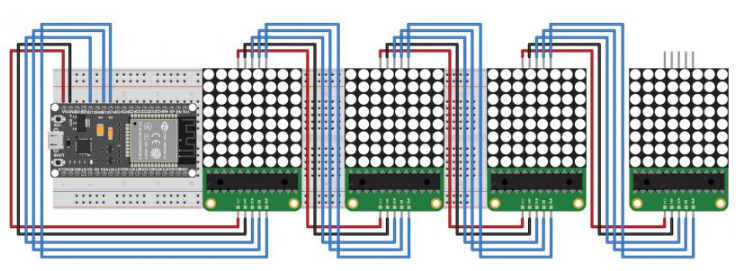
The circuit consists of 4 MAX7219 dot matrix displays connected in parallel, powered by the ESP32.
The 500mA that USB can supply is sufficient for this project
The Code
The following libraries are used:
- MaxMatrix.h
- Simplifies programming the display by allowing us to send serial commands
- Pgmspace.h
- This library allows us to copy data to the flash memory of the ESP32, rather than the SRAM. We will use it to store the array of binary used to display each character, digit or symbol.
- BlynkSimpleEsp32.h
- Contains functions for interfacing with Blynk
- WiFi.h and WiFiClient.h
Firstly, populate these variables:
char auth[] = "Authentication number here" // From Blynk
char ssid[] = "WiFi SSID here";
char pass[] = "WiFi Password here";
The program stores 8 pre-programmed phrases that can be activated via pushbutton. Each must be 20 characters or less. We are storing the characters / phrase in a string array within the flash memory of the ESP32
PROGMEM String phrase1 = " Phrase 1 ";
PROGMEM String phrase2 = " Phrase 2 ";
PROGMEM String phrase3 = " Phrase 3 ";
PROGMEM String phrase4 = " Phrase 4 ";
PROGMEM String phrase5 = " Phrase 5 ";
PROGMEM String phrase6 = " Phrase 6 ";
PROGMEM String phrase7 = " Phrase 7 ";
PROGMEM String phrase8 = " ";
maxInUse defines the number displays used. In this case, it’s 4. You can cascade additional displays. However, a more powerful supply is required. Also, use a buffer on CS/DATA and CLK pins after the first four displays to ensure signal strength
scrollSpeed defines the rate at which the text scrolls across the screen.
int maxInUse = 4;
int scrollSpeed = 200;
Creating The Blynk App
Please consult the Blynk documentation for this step
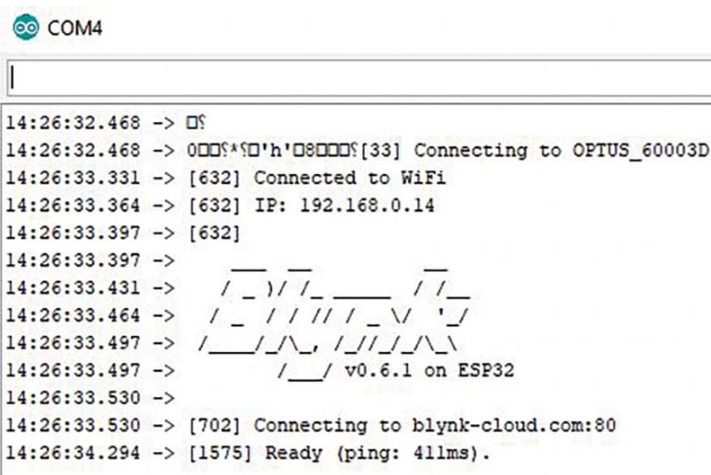
I would suggest to test that the internet connection is working
Also, keep in mind that the ESP32 only supports 2.4GHz WiFi. Not 5GHz
The Schematic
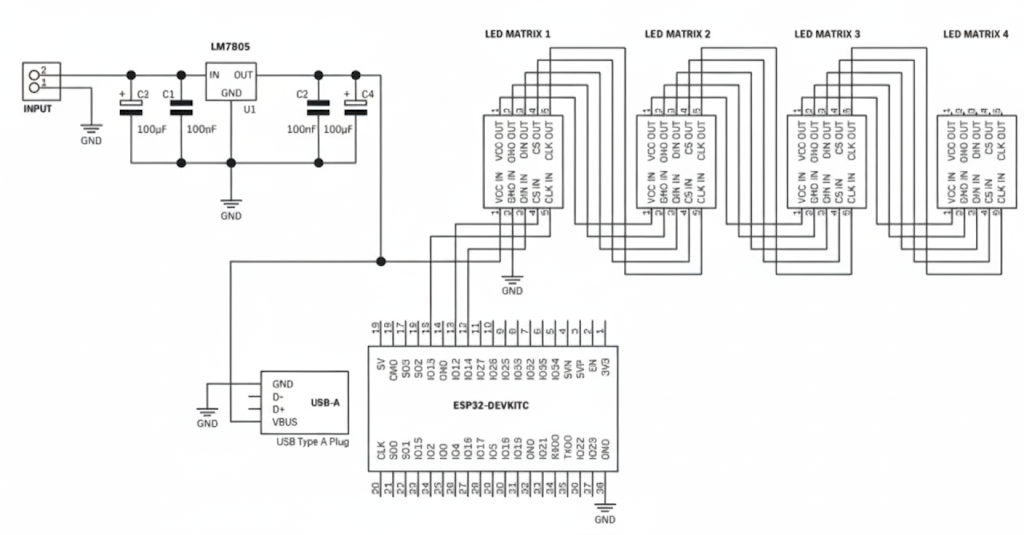
For simplicity, 9-12V from a DC barrel jack connection labelled “INPUT” on the schematic) gets regulated to 5V. This powers the displays AND the ESP32 via USB.
This avoids the hassle of providing 2 separate rails. 3.3V for the ESP32 and 5V for the displays.
This approach is used as you CANNOT power ESP32 from 5V (only 3.3V) as there is a diode between USB input and 5V pin.
A small clip-on heatsink for the 7805 👍↗️
Further Improvements
Adding an RTC module so the display can … display the time