This project creates an electronics version of Tic-Tac-Toe! A MCP23017 I/O expander is showcased and RGB LEDs are added for additional flair
Introduction
This project will consist of 4 components:
- ATmega328p
- Pushbuttons
- RGB LEDs
- I/O extender
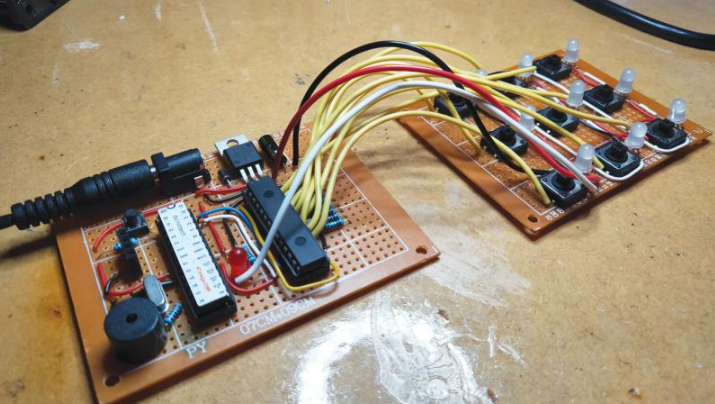
The ATmega328p and the I/O extender will occupy the bottom subassembly called the control board. The pushbuttons and RGB LEDs will occupy upper subassembly called the button board
I have opted to use the ATmega328p (which is the heart of an Arduino Uno) rather than the Arduino Uno itself to reduce space. All we need to do to make it function is add:
- A 16MHz quartz crystal for the microprocessor clock
- A pullup resistor with button for the Reset pin
- A stable 5V power source & reference voltage
NOTE: When you purchase the ATmega328p, ensure it has the Arduino bootloader
For the LEDs, I’ll be using WS2812 addressable digital RGB LEDs. The wiring is very simple. DOUT of one LED connects to DIN of the next
I/O Extender
This is unnecessary as the ATMega328p has 20 digital I/O’s, more than the 9 required for this project. However, I’d like to showcase it.
The specific IC I’m using is the MCP23017 I/O extender
You trade 2 Arduino pins (SCL and SDA) to get an extra 16 EXTRA GPIO PINS. Additionally, You can daisy chain them to a max of 8. That means 2 Arduino pins for 64 GPIO pins!
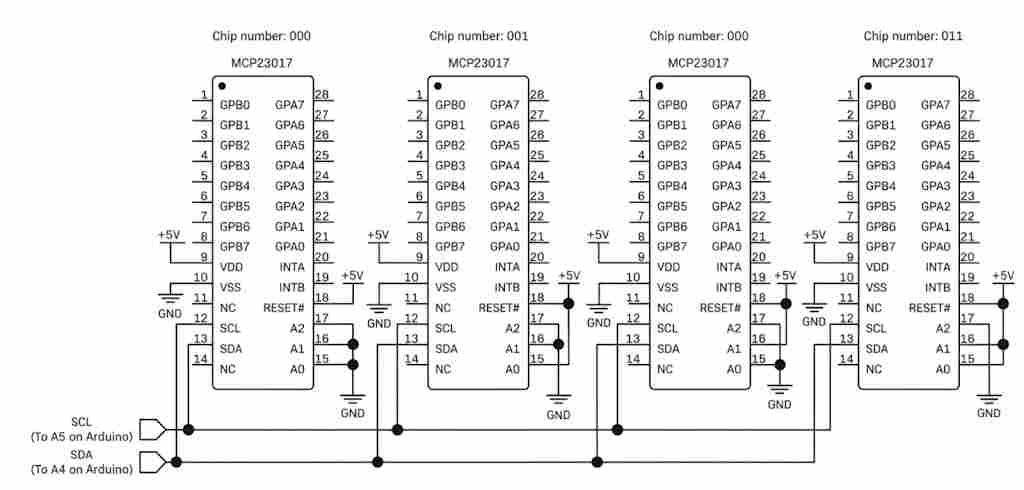
When doing this, you just need to set the I2C address of each I/O expander using A0-A2. Connect it to VCC or ground to set the I2C address.
Despite the MCP23017 having internal 100k pullups, in my experience I found them to be weak. Thus, external 4.7k pulldown resistors will be used the buttons. Adding pulldown resistors ensures that the MCU doesn’t not read a floating value when the switch is not pressed.
The Prototype
Before progressing to the full-build, I built and tested a prototype consisting of 3 LEDs. 3 buttons.
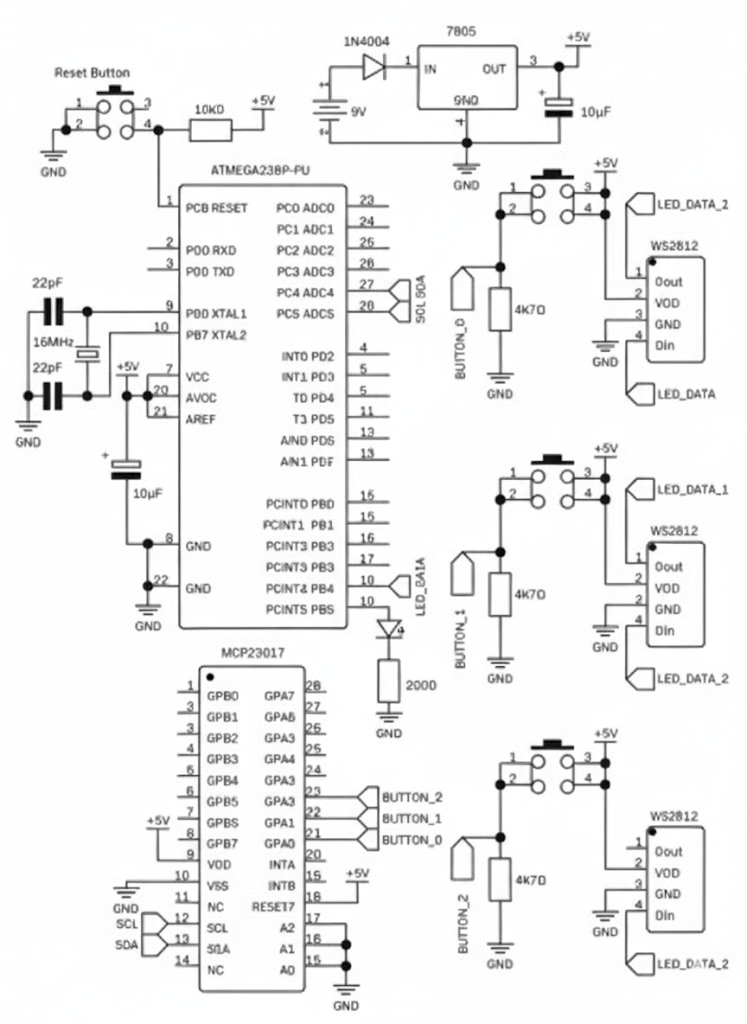
Power is supplied via 9V battery that is regulated to 5V. This rail supplies power to the two IC’s and the WS2812 LEDs
A 10kΩ pullup resistor on the reset pin is used to reset the ATmega328p. This is used when writing to the ATmega328p.
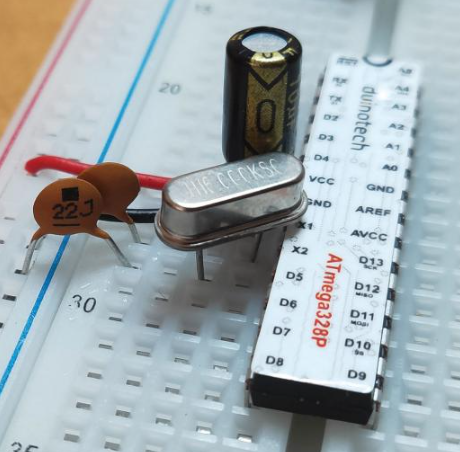
A 16MHz quartz crystal between the X1 and X2 pins
The Code
Two libraries are used:
- The Adafruit MCP23017
- FastLED
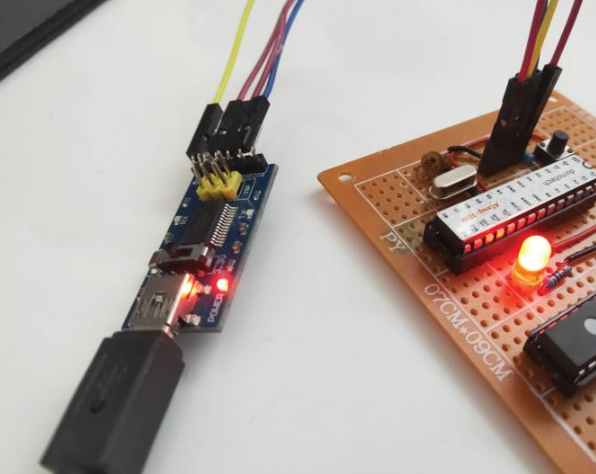
For uploading the code, I used a FTDI micro-USB programmer. This device converts USB data into serial data that is compatible with the ATmega328p.
After testing it and finding no issues, we can progress to the main build.
The Main Build
The main build expands on the prototype by adding 9 LEDs, 9 buttons and a buzzer.
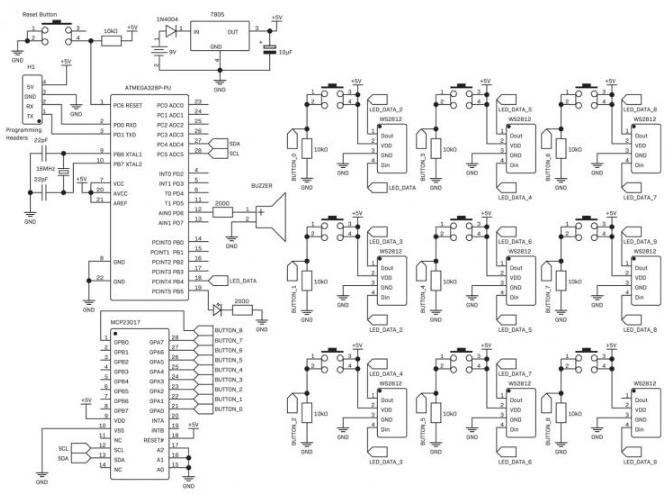
As long as you follow the connections in the schematic, you should be good to go!
The Code
A summary of the code:
- Wait for any button to be pressed, which will start the program and light up the LEDs.
- When the game starts, ask each player what colour they want to be in the game – display nine colours on the buttons and set the player colour to whichever one they press.
- Start the game. The players take turns of pressing squares, which is then lit up to their colour.
- Once a winning combination is detected, flash all squares the winning colour and go back into standby mode – turn the LEDs off.
Setup
#include <FastLED.h>
#define NUM_LEDS 9
#include <Wire.h>
#include "Adafruit_MCP23017.h"
#include <avr/wdt.h>
CRGBArray<NUM_LEDS> leds;
Adafruit_MCP23017 mcp;
int board[3][3] = {{0,0,0},
                           {0,0,0},
                           {0,0,0}};
int playerColours[] = {0,32,64,96,128,160,192,224,255};
bool player1 = true;
int brightness = 160;
int player1Hue = 0;
int player2Hue = 0;
The setup part of the program defines the variables and objects. The 2d array called board contains and tracks the 9 possible button inputs.
Zero means the square is empty; if a player presses a button, their player number is set to that square. The player1 variable is then toggled from False to True or vice versa, depending on which player is next.
At the beginning of the game, the board illuminates with a spectacle of 9 different colors that the players can choose from.
The “playerColours” array defines a list of hues the players can choose from. They’re then assigned to the player1Hue and player2Hue variables.
Brightness defines the … brightness fo the WS2812B’s.
For brevity, I’ll omit the main loop and summarize it.
- A while loop iterates over all the buttons and checking if any are pressed
- If a button is pressed, and that grid square is empty, the square will be assigned to that player. When assigned, the square lights up that players colour.
- After a player has chosen a square, the code checks to whether any player has won or if there is a tie. It can return 1 or 2 if a certain player has won, 3 if the game is a tie or otherwise 0 if the game should continue.
- If the game continues, the players swap and the loop continues.
- If the game ends, an image is flashed – the colour of the player who won, or a white letter “T” if the game is a tie.
Moving on
For future iterations, additional minigames can be programmed such as:
- Wack-a-mole game
- Roulette game
- Dice